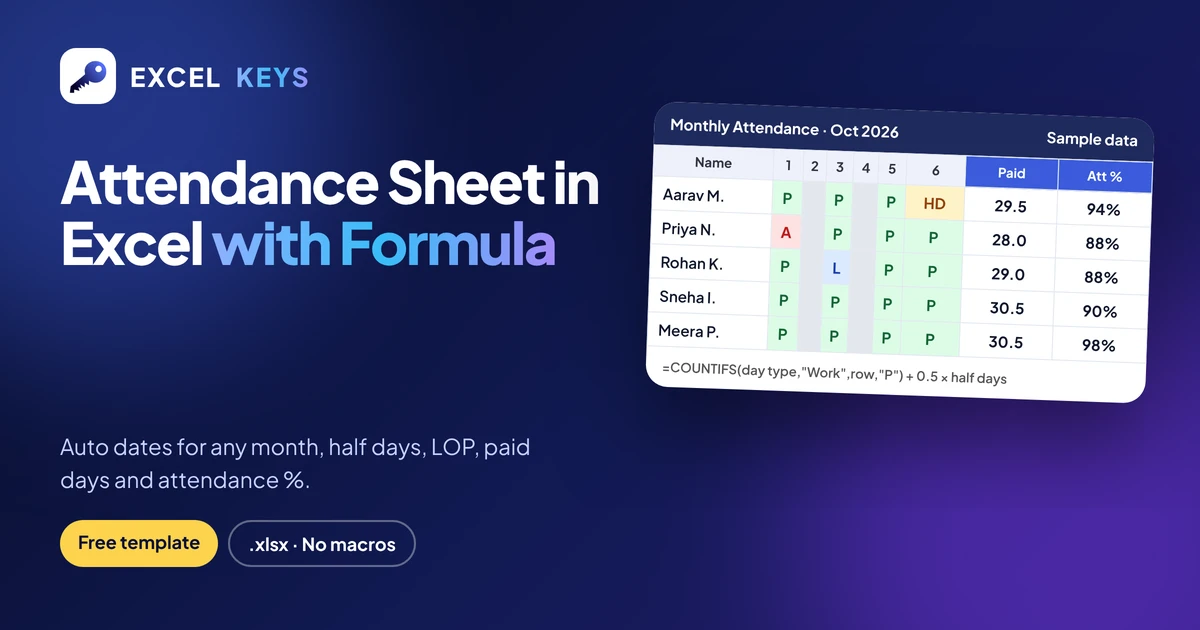
An attendance sheet in Excel with formula marks each employee P, A, HD or L for every day and counts the totals for you. Use =COUNTIF(D8:AH8,"P") for present days and add 0.5 for each half day. Paid days = days in month − loss-of-pay days, and attendance % = present days ÷ working days.
Most attendance templates online stop at counting P and A. In an office, that is only half the job: the sheet also has to skip Sundays and holidays, treat a half day correctly, and give payroll a clean number of paid days. This guide builds exactly that, step by step, and gives you the finished monthly attendance sheet as a free download with 20 dummy employees.
Key takeaways
- Type the first day of the month in one cell and let formulas build the dates, the weekday names and the number of days:
=DAY(EOMONTH(C2,0)). - Tag every day as Work, WO (weekly off) or H (holiday) in a helper row. Then count codes only on working days with COUNTIFS, so a stray mark on a Sunday never changes the totals.
- A half day counts as 0.5 present and 0.5 absent. Paid days = days in month − loss-of-pay days. Attendance % = present days ÷ working days.
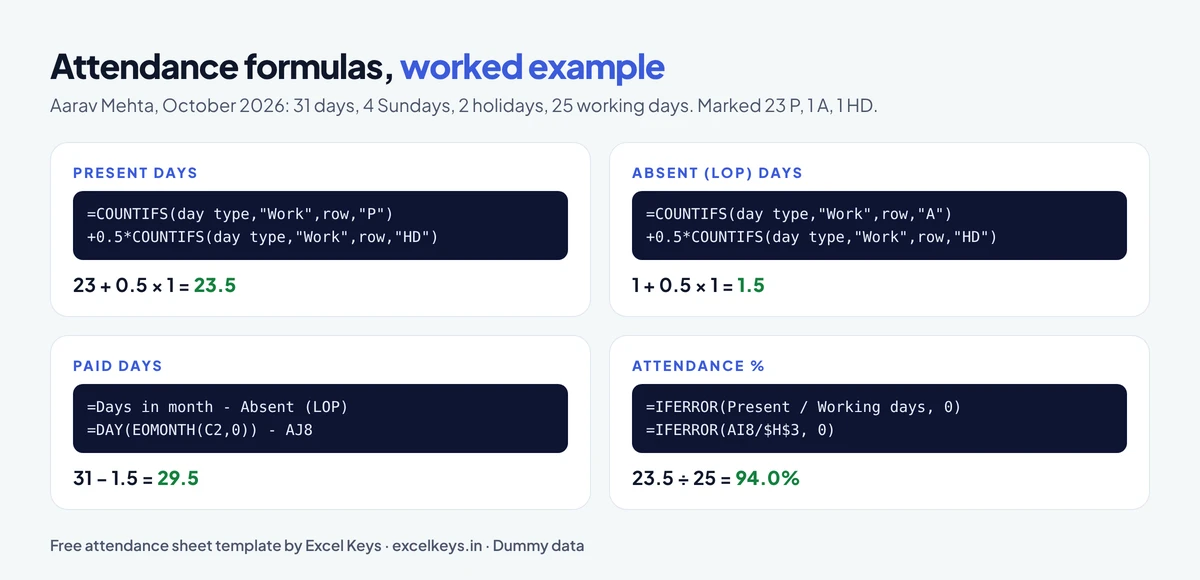
- In the sample month (October 2026: 31 days, 4 Sundays, 2 holidays, 25 working days), one employee marked 23 P, 1 A and 1 HD gets 23.5 present days, 1.5 LOP days, 29.5 paid days and 94.0% attendance.
- Add a “Not marked” check. It catches the working days someone forgot to fill before the sheet goes to payroll.
In this guide
- What a good attendance sheet contains
- How to make an attendance sheet in Excel, step by step
- Attendance formulas in Excel
- Worked example with real numbers
- Free monthly attendance sheet template
- Common mistakes
- Frequently asked questions
What a good attendance sheet in Excel contains
Before writing a single formula, decide what the sheet has to answer. For a monthly employee attendance sheet, it is usually five things: who was present on each day, how many days each person was present, how many days are loss of pay, how many days will be paid, and whether anyone’s attendance is below the level your team watches.
That leads to a simple layout with one row per employee and one column per day:
- Two input cells at the top: the first day of the month and the weekly off (Sunday, or Saturday and Sunday).
- Three header rows above the grid: day type (Work, WO or H), the date and the weekday.
- The attendance grid: employee ID, name and department, then 31 day columns that hold a code.
- Totals on the right: present, absent (LOP), half days, paid leave, not marked, paid days and attendance %.
- A separate Holidays sheet with one date per row, so you can update the list every year without touching a formula.
Keep the codes short and fixed. This sheet uses four:
| Code | Meaning | Counts as present | Counts as loss of pay |
|---|---|---|---|
| P | Present | 1 | 0 |
| A | Absent without approved leave | 0 | 1 |
| HD | Half day | 0.5 | 0.5 |
| L | Approved paid leave | 0 | 0 |
If your company splits leave into casual, sick and earned leave, you can add codes such as CL, SL and EL later. Start with four, get the formulas right, then extend. The same rule applies to any Excel report: clean, consistent inputs first, as explained in our checklist for preparing Excel data.
How to make an attendance sheet in Excel, step by step
Step 1: Add the month and the weekly off
In C2, type the first day of the month, for example 01-Oct-2026. In C3, add a drop-down (Data > Data Validation > List) with two options: Sunday and Saturday and Sunday. Then let Excel count the days in the month in H2:
Days in month H2 = DAY(EOMONTH(C2,0))EOMONTH returns the last date of the month and DAY turns it into 28, 29, 30 or 31, so February and leap years take care of themselves.
Step 2: Build the dates and weekday names automatically
Row 6 holds the dates in D6 to AH6 (31 columns). Each cell adds a day to the start date, and stays blank once the month is over:
D6  = IF(0<$H$2, $C$2+0, "")
E6  = IF(1<$H$2, $C$2+1, "")
...
AH6 = IF(30<$H$2, $C$2+30, "")

Weekday (row 7)   D7 = IF(D6="", "", TEXT(D6,"ddd"))
Format row 6 with the custom number format dd so it shows 01, 02, 03 and so on. Change C2 to 01-Nov-2026 and the whole header rebuilds itself for November, which has 30 days.
Step 3: Mark weekly offs and holidays in a helper row
This row is what makes the sheet reliable. It labels every date as Work, WO or H:
D5 = IF(D6="", "",
     IF(OR(WEEKDAY(D6)=1, AND($C$3="Saturday and Sunday", WEEKDAY(D6)=7)), "WO",
     IF(COUNTIF(Holidays!$A$2:$A$60, D6)>0, "H", "Work")))
WEEKDAY returns 1 for Sunday and 7 for Saturday. COUNTIF checks whether the date appears in your holiday list. With this row in place, the month’s summary needs just three small formulas:
Working days   H3 = COUNTIF(D5:AH5,"Work")
Weekly offs    M2 = COUNTIF(D5:AH5,"WO")
Holidays       M3 = COUNTIF(D5:AH5,"H")
Step 4: Add a drop-down for the codes
Select the grid (D8:AH27 for 20 employees), open Data > Data Validation, choose List and type P,A,HD,L as the source. Add an error message such as “Use P, A, HD or L”. Typos like “p ” or “Present” are the most common reason attendance totals are wrong, and the drop-down stops them at the source.
Step 5: Colour the sheet with conditional formatting
Two kinds of rules make the sheet readable at a glance:
- Grey for weekly offs and holidays. Select D8:AH27 and add a formula rule
=OR(D$5="WO",D$5="H")with a grey fill. The dollar sign before 5 keeps every row looking at the helper row. - A colour for each code. Add “Cell value equal to” rules: P green, A red, HD amber and L blue.
Step 6: Add the totals for every employee
Put the totals in columns AI to AO and copy them down for every employee. The exact formulas are in the next section.
Attendance formulas in Excel
The simplest present and absent formulas count the codes in one row:
Present days = COUNTIF(D8:AH8,"P")
Absent days  = COUNTIF(D8:AH8,"A")
That works for a school register. For an office sheet you need half days and you want to count only working days, so the template uses COUNTIFS with the helper row as the first condition:
Present (AI8)      = COUNTIFS($D$5:$AH$5,"Work",D8:AH8,"P")
                     + 0.5*COUNTIFS($D$5:$AH$5,"Work",D8:AH8,"HD")

Absent, LOP (AJ8)  = COUNTIFS($D$5:$AH$5,"Work",D8:AH8,"A")
                     + 0.5*COUNTIFS($D$5:$AH$5,"Work",D8:AH8,"HD")

Half days (AK8)    = COUNTIFS($D$5:$AH$5,"Work",D8:AH8,"HD")
Paid leave (AL8)   = COUNTIFS($D$5:$AH$5,"Work",D8:AH8,"L")
Not marked (AM8)   = $H$3 - COUNTIFS($D$5:$AH$5,"Work",D8:AH8,"<>")
Paid days (AN8)    = $H$2 - AJ8
Attendance % (AO8) = IFERROR(AI8/$H$3, 0)
Three details are worth understanding:
- Why paid days start from all days in the month. Weekly offs, holidays and approved leave are paid. The only unpaid days are loss of pay, so paid days = days in month − LOP. This is the number payroll needs.
- Why attendance % uses working days. Dividing by 31 would make everyone look absent on Sundays. Present ÷ working days measures attendance only on days people were expected to work. Some teams also leave approved leave out of the denominator. If yours does, use
=AI8/($H$3-AL8)and write the rule in a note so everyone reads the number the same way. - Why “<>” in Not marked. The criterion “<>” means “not blank”. Working days minus the number of working days with any code gives the days nobody filled in.
For a daily headcount, add two rows under the grid. Present on a day is =IF(D$5="Work", COUNTIF(D8:D27,"P")+0.5*COUNTIF(D8:D27,"HD"), ""), and absent follows the same pattern with “A”. Copy them across all 31 columns.
Worked example with real numbers
Take the sample month in the template: October 2026, with Sunday as the weekly off and two holidays on the Holidays sheet (2 October and one example company holiday on 20 October).
- Days in month: 31
- Weekly offs: 4 (Sundays 4, 11, 18 and 25 October)
- Holidays: 2
- Working days: 31 − 4 − 2 = 25
The first employee, Aarav Mehta (dummy data), is marked P on 23 working days, A on 1 day and HD on 1 day:
| Measure | Calculation | Result |
|---|---|---|
| Present days | 23 + 0.5 × 1 | 23.5 |
| Absent (LOP) days | 1 + 0.5 × 1 | 1.5 |
| Paid days | 31 − 1.5 | 29.5 |
| Attendance % | 23.5 ÷ 25 | 94.0% |
Turning paid days into salary. If the company calculates daily pay on calendar days, the payable salary is monthly salary ÷ days in month × paid days. For a monthly salary of ₹31,000 in October, that is ₹31,000 ÷ 31 × 29.5 = ₹29,500. Some companies divide by a fixed 30 or by working days instead, so follow your own payroll policy. The sheet’s job is to give an accurate paid-days figure.
Across all 20 dummy employees, the Summary sheet shows an average attendance of 92.7%, 18.5 LOP days, 17 days of paid leave and 5 employees below 90%. It also flags one working day that was never marked: employee E107 has nothing entered for 28 October, so the Not marked column shows 1 and turns red. That single check saves an awkward correction after salaries are processed.
Free monthly attendance sheet template (download)
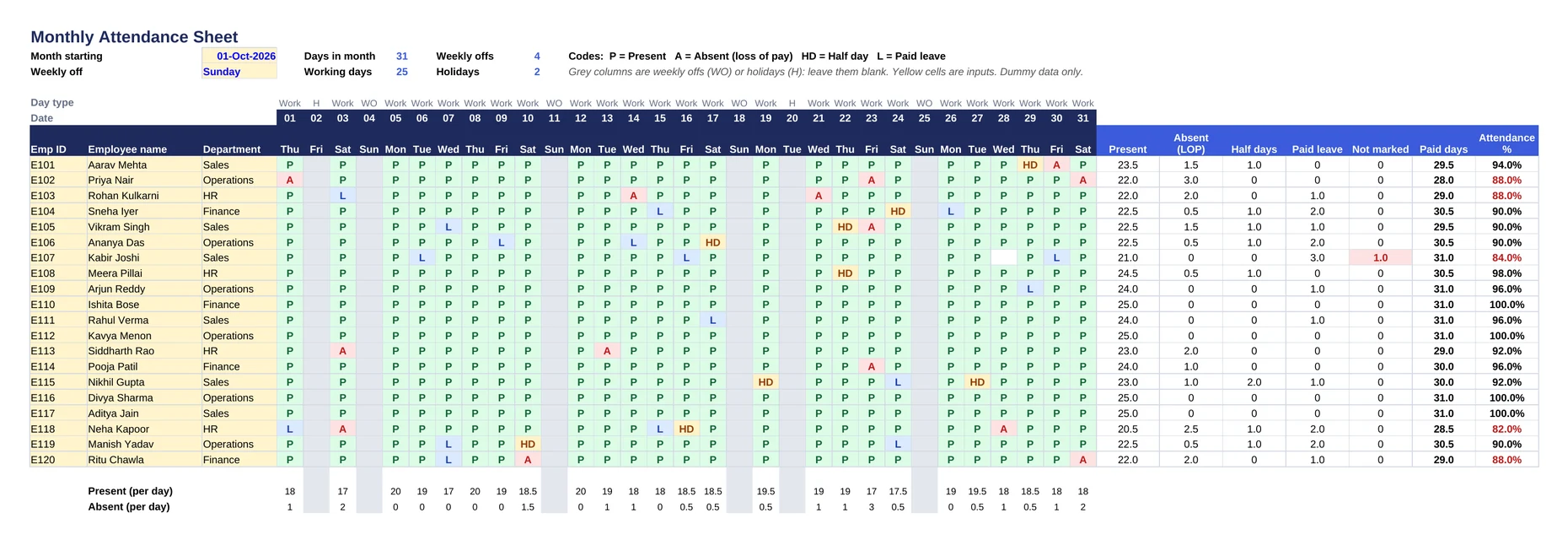
The workbook has four sheets:
- How to use: eight short steps and the formulas in plain words.
- Attendance: month and weekly off inputs, automatic dates, 20 dummy employees, colour-coded codes with a drop-down, all seven totals and a daily present/absent count.
- Holidays: your holiday dates, up to 59 rows.
- Summary: employees, average attendance %, total present, LOP and leave days, employees below 90%, cells not marked, the most absent employee and a department-wise table.
It uses only COUNTIF, COUNTIFS, EOMONTH, WEEKDAY, TEXT, INDEX and MATCH, with no macros and no dynamic-array functions, so it works in Excel 2010 and later, Excel for the web and Google Sheets. All names and marks are fictional.
To use it for your team: set C2 to the first day of your month, pick the weekly off in C3, replace the holidays, paste your employee list over the dummy rows, and start marking. More free workbooks like this are on our free Excel templates page.
Common mistakes in attendance sheets
- Typing dates by hand for every month. One wrong date shifts every weekday after it. Build the dates from one start cell.
- Counting a half day as a full day. COUNTIF(row,”P”) ignores HD completely. Add 0.5 × half days to present and to LOP.
- Dividing attendance by 30 or 31. Use working days, or the percentage will punish everyone for Sundays.
- Free-text codes. “P”, “p”, “Present” and “P ” are four different values to COUNTIF. Use a drop-down.
- No check for blanks. A blank working day is neither present nor absent, so it silently becomes a paid day. The Not marked column makes it visible.
- One file per month with formulas copied by hand. Keep one master template, save a copy each month, and change only C2 and the marks.
From attendance sheet to HR dashboard
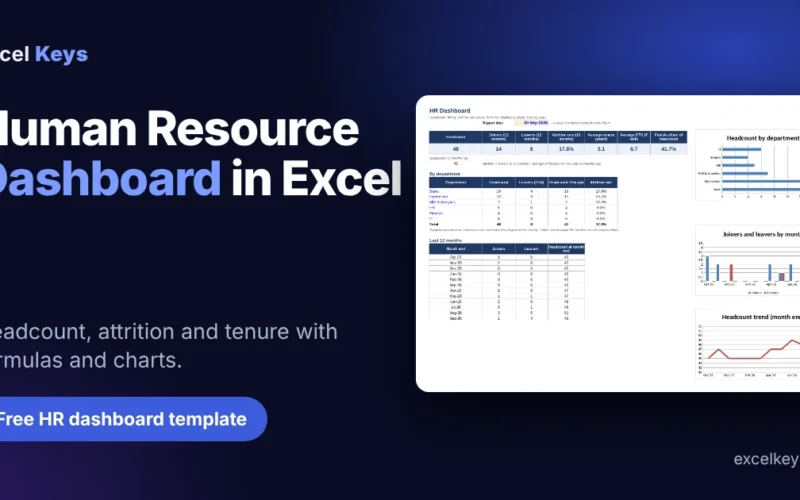
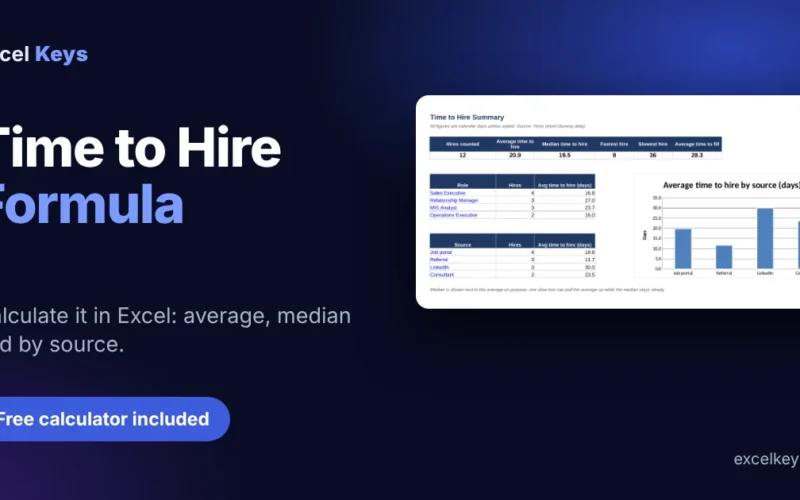
Monthly attendance is one input to a wider HR report. Joined with headcount, joiners and leavers, it shows absence trends by department and month. Our guide to building a human resource dashboard in Excel covers headcount, attrition and tenure, and the time to hire formula guide covers the recruitment side. If you prepare these numbers as part of a monthly pack, the MIS report in Excel guide shows how to put it all into one summary.
When the same attendance, leave and HR data has to be reported every month across several locations, a dashboard saves the most time. You can try our HR analytics dashboard live in your browser on sample data.
Frequently asked questions
What is the formula for attendance in Excel?
Count present days with =COUNTIF(D8:AH8,”P”), where D8:AH8 is one employee’s row for the month. Count absent days the same way with “A”. Attendance percentage is present days divided by working days, for example =IFERROR(AI8/$H$3,0), formatted as a percentage.
How do I count a half day in an attendance sheet?
Mark the day HD and add half of it to both present and absent days: present = COUNTIF(row,”P”) + 0.5*COUNTIF(row,”HD”), and loss of pay = COUNTIF(row,”A”) + 0.5*COUNTIF(row,”HD”). An employee with 23 P, 1 A and 1 HD then has 23.5 present days and 1.5 LOP days.
How do I exclude Sundays and holidays from attendance in Excel?
Add a helper row that labels each date: WEEKDAY(date)=1 is Sunday, and COUNTIF(holiday list, date)>0 means the date is a holiday. Label the rest “Work”. Then count codes with COUNTIFS(helper row,”Work”,employee row,”P”), so weekly offs and holidays are never counted as present or absent.
How do I make the attendance sheet update automatically every month?
Keep the first day of the month in one cell and build every date from it with =IF(n<days,start+n,””), where days is =DAY(EOMONTH(start,0)). When you change the start date, the dates, weekday names, weekly offs and working-day count all update, and months with 28, 29 or 30 days leave the extra columns blank.
How do I calculate paid days and LOP from attendance?
Loss of pay days are absent days plus half of the half days. Paid days are days in the month minus LOP days, because weekly offs, holidays and approved leave are paid. In October, an employee with 1.5 LOP days has 31 − 1.5 = 29.5 paid days.
Can I use this attendance sheet in Google Sheets?
Yes. Upload the .xlsx file to Google Drive and open it with Google Sheets. COUNTIF, COUNTIFS, EOMONTH, WEEKDAY and TEXT all work there, and the drop-downs and colour rules carry over.
Fill it daily, check it monthly
A good attendance sheet is quick to fill every day and needs one check before payroll: Not marked should be zero everywhere. Download the template, set your month, and the formulas handle the rest. If you need attendance, leave and HR data turned into a dashboard for your whole team, send us your requirement.