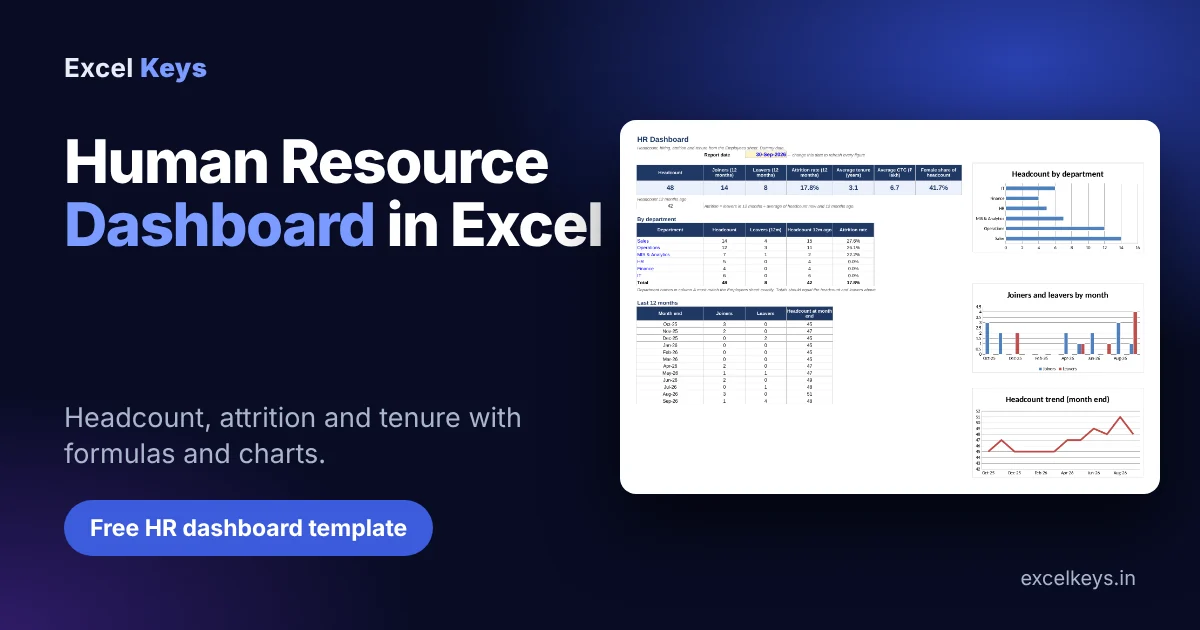
A human resource dashboard in Excel is a single sheet that turns your employee list into the numbers HR is asked about every month: headcount, joiners, leavers, attrition and tenure. You do not need Power BI or a paid HRIS to build one. This guide shows the exact formulas, the charts to add, and a free HR dashboard template with 60 dummy employees you can replace with your own.
Key takeaways
- A human resource dashboard in Excel needs only one clean employee table with join date and exit date, plus a report date cell.
- Headcount on any date equals employees who joined on or before it minus those who left on or before it, which COUNTIFS calculates in one line.
- Attrition rate is leavers in the last 12 months divided by the average of headcount now and headcount 12 months ago.
- Break every number down by department. In the sample data the company-wide attrition is 17.8%, but Sales and Operations account for 7 of the 8 leavers.
- Three charts are enough: headcount by department, joiners and leavers by month, and the headcount trend.
In this guide
- What is an HR dashboard?
- Which HR metrics to include
- How to build an HR dashboard in Excel
- Reading the sample dashboard
- Free HR dashboard template
- Common mistakes
- When Excel is not enough
- Frequently asked questions
What is a human resource dashboard?
A human resource dashboard is a one-page report that shows the state of your workforce through a handful of metrics and charts: how many people you have, how many joined and left, where attrition is highest and how long people stay. It replaces a pile of monthly Excel extracts with a view that updates when the data changes.
Most small and mid-sized teams already have the raw material. It sits in an employee master or HR tracker with one row per person. The dashboard is just a set of formulas and charts reading from that list. When I build HR MIS reports, I start by checking two columns, join date and exit date, because every metric on this page depends on them being complete and real dates.
Which HR metrics should an HR dashboard include?
Start small. Six to eight metrics that people actually discuss in review meetings are better than thirty that nobody reads. The table below lists the ones in the free template, with the Excel function behind each. For the recruitment side, such as time to hire and offer acceptance, see our guide to talent acquisition dashboard KPIs and the time to hire formula post.
| Metric | What it tells you | How it is calculated | Excel function |
|---|---|---|---|
| Headcount | People employed on the report date | Joined on or before the date minus left on or before the date | COUNTIFS |
| Joiners (12 months) | Hiring volume | Join dates inside the last 12 months | COUNTIFS, EDATE |
| Leavers (12 months) | Exits | Exit dates inside the last 12 months | COUNTIFS, EDATE |
| Attrition rate | Share of people leaving | Leavers ÷ average of headcount now and 12 months ago | AVERAGE |
| Average tenure | How long people stay | Years from join date to the report date, active staff only | AVERAGEIFS |
| Average CTC | Cost level of the workforce | Simple average of annual CTC in ₹ lakh, active staff | AVERAGEIFS |
| Gender mix | Diversity snapshot | Female employees ÷ headcount | COUNTIFS |
| Monthly trend | Direction of travel | Joiners, leavers and headcount at each month end | COUNTIFS, EOMONTH |
How to build a human resource dashboard in Excel
The steps below build the dashboard exactly as it appears in the free template. The workbook has an Employees sheet for data and a Dashboard sheet for the results.
Step 1: Prepare one clean employee table
Create the Employees sheet with one row per person, current and past: Employee ID, Department, Gender, Location, Join date, Exit date and Annual CTC. Leave Exit date blank for anyone still employed. Dates must be real Excel dates, not text. Our data preparation checklist covers the common problems, such as merged cells and mixed date formats, that break formulas later.
Step 2: Add a report date cell
Put one date on the Dashboard sheet, for example 30-Sep-2026 in cell C3, and make every formula refer to it. Changing that single cell moves the whole dashboard to another month end, which also lets you rebuild last quarter’s view in seconds.
Step 3: Add two helper columns
Status:  =IF(F2="","Active","Left")
Tenure (years):  =ROUND((IF(F2="",Dashboard!$C$3,F2)-E2)/365.25,1)
Status separates active employees from leavers. Tenure measures from the join date to the exit date for leavers and to the report date for active staff. Copy both formulas down the column.
Step 4: Calculate headcount
=COUNTIFS(Employees!$E$2:$E$500,"<="&$C$3)-COUNTIFS(Employees!$F$2:$F$500,"<="&$C$3)The first COUNTIFS counts everyone who joined on or before the report date. The second counts everyone who has left by then. The difference is headcount on that date. This method does not depend on the Status column, so it still works when you move the report date back in time.
Step 5: Count joiners and leavers for the last 12 months
Joiners:  =COUNTIFS(Employees!$E$2:$E$500,">"&EDATE($C$3,-12),Employees!$E$2:$E$500,"<="&$C$3)
Leavers:  =COUNTIFS(Employees!$F$2:$F$500,">"&EDATE($C$3,-12),Employees!$F$2:$F$500,"<="&$C$3)
EDATE moves a date back by 12 months. The condition keeps join (or exit) dates that fall after that point and on or before the report date.
Step 6: Calculate the attrition rate
Headcount 12 months ago:
=COUNTIFS(Employees!$E$2:$E$500,"<="&EDATE($C$3,-12))-COUNTIFS(Employees!$F$2:$F$500,"<="&EDATE($C$3,-12))

Attrition rate:
=IF((A6+A8)=0,0,C6/AVERAGE(A6,A8))
Attrition is leavers divided by the average headcount over the period, so the formula averages today’s headcount (A6) with the headcount a year ago (A8). Format the result as a percentage. Some teams divide by opening headcount instead. Either is acceptable if you pick one and state it on the dashboard.
Step 7: Break the numbers down by department
Headcount:  =COUNTIFS(Employees!$B$2:$B$500,$A12,Employees!$E$2:$E$500,"<="&$C$3)-COUNTIFS(Employees!$B$2:$B$500,$A12,Employees!$F$2:$F$500,"<="&$C$3)
Average tenure:  =AVERAGEIFS(Employees!$I$2:$I$500,Employees!$H$2:$H$500,"Active")
Add the department name as a third COUNTIFS condition and copy the formula down a list of departments. AVERAGEIFS handles averages such as tenure or CTC for active staff only. Always check that the department totals equal the company-wide figures. A mismatch usually means a department name is spelled differently in the data.
Step 8: Build a 12-month trend table
Month end:  =EOMONTH($C$3,-11)   (then -10, -9 ... 0)
Joiners:  =COUNTIFS(Employees!$E$2:$E$500,">"&EOMONTH(A23,-1),Employees!$E$2:$E$500,"<="&A23)
EOMONTH returns the last day of a month, which makes clean monthly buckets. Build the same pattern for leavers and for headcount at month end, using the headcount formula from Step 4 with the month-end date.
Step 9: Add three charts
Select the department table and insert a bar chart. Select the monthly joiners and leavers columns for a clustered column chart. Use the headcount column for a line chart. Keep colours consistent and remove gridlines you do not need. If you are new to charting, Microsoft has a short guide to creating a chart.
Step 10: Keep it refreshable
Paste new employee rows below the existing ones, copy the helper formulas down and change the report date. If you convert the employee list to an Excel Table, you can add slicers for department or location and filter the data in one click. One caution: COUNTIFS counts hidden rows too, so slicers on the Employees table will not change the Dashboard formulas. Use a PivotTable if you want slicers to drive the numbers.
Reading the sample dashboard
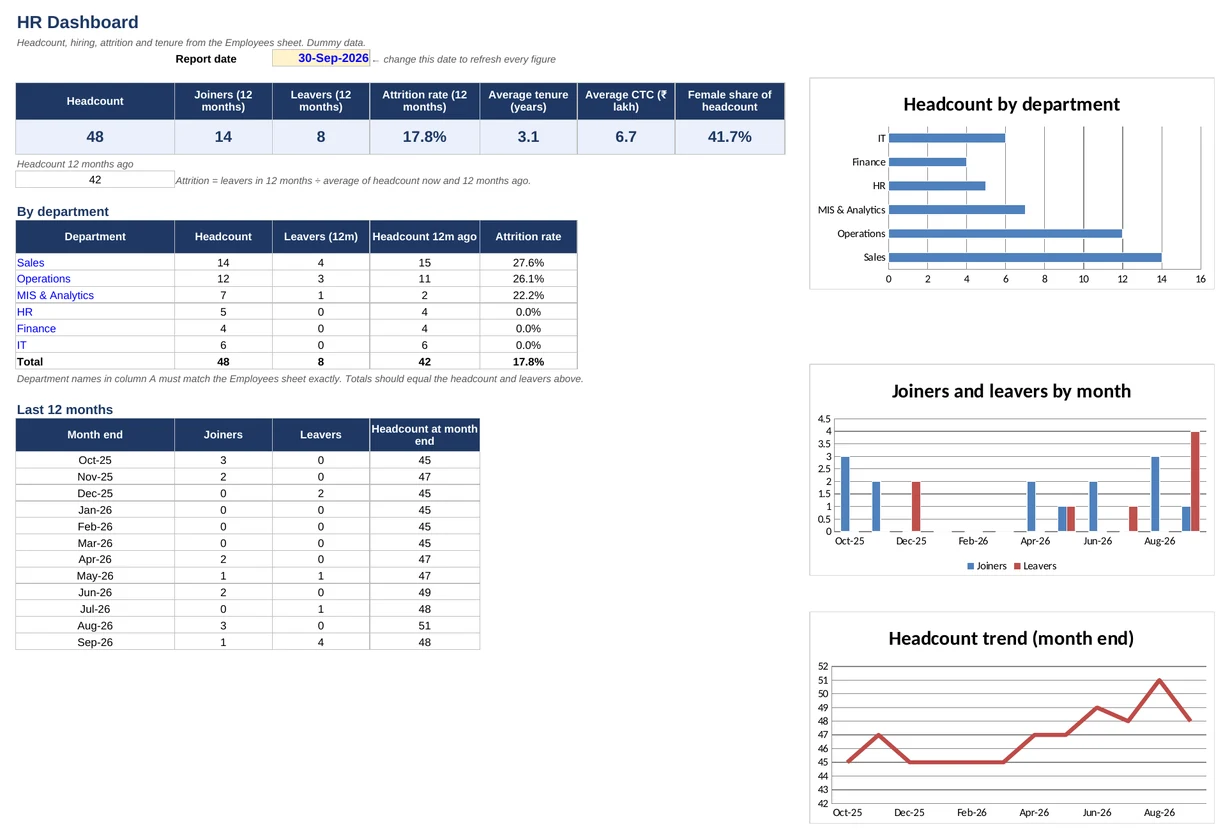
These numbers come from the 60 dummy employees in the template, so treat them as an illustration of the method and not as a benchmark for any company or industry.
| Measure | Result (30 Sep 2026) |
|---|---|
| Headcount | 48 |
| Headcount 12 months ago | 42 |
| Joiners, last 12 months | 14 |
| Leavers, last 12 months | 8 |
| Attrition rate | 17.8% (8 ÷ average of 48 and 42) |
| Average tenure (active staff) | 3.1 years |
| Average CTC (active staff) | ₹6.7 lakh |
| Female share of headcount | 41.7% |
The headline attrition of 17.8% looks moderate. The department table tells a sharper story: Sales lost 4 people (27.6% attrition) and Operations lost 3 (26.1%), so those two teams account for 7 of the 8 exits. HR, Finance and IT lost nobody. The monthly chart adds one more detail: September had 4 leavers and only 1 joiner, which is why headcount dropped from 51 to 48 in a single month.
A fair warning about small teams: MIS & Analytics shows 22.2% attrition from a single leaver because its headcount a year ago was only 2. Percentages on very small groups swing wildly, so show the leaver count next to the rate, as the template does.
Free HR dashboard template (download)
The workbook used in this guide is free to download and adapt. It has an Employees sheet with 60 dummy records, a Dashboard sheet with the formulas, department table, 12-month trend and three charts, and a How to use sheet with definitions and assumptions.
- Blue cells are inputs; grey columns and the Dashboard are formulas.
- Replace the dummy rows on the Employees sheet with your own, copy the Status and Tenure formulas down, and set the report date.
- Rename the departments on the Dashboard to match your data exactly.
- Uses classic functions (COUNTIFS, AVERAGEIFS, EDATE, EOMONTH) and no macros, so it works in any modern Excel.
Common mistakes when building an HR dashboard in Excel
- Counting leavers in headcount. Always subtract employees whose exit date is on or before the report date.
- Inconsistent attrition maths. Decide whether you divide by average or opening headcount, and keep it the same every month.
- Dates stored as text. COUNTIFS comparisons silently return zero. Check that dates are right-aligned and that the cells are formatted as dates.
- Typing department names differently. One extra space makes a department vanish from the table. Use a fixed list or data validation.
- Showing rates without counts. Two leavers in a team of five is 40%. Show both so readers keep perspective.
- Overloading the page. If a metric is not discussed in a monthly review, move it to a second sheet.
- Putting personal data in a shared file. Share the dashboard sheet, not the employee list, and remove names and salaries where they are not needed.
When Excel is not enough
A formula-based Excel dashboard works well up to a few thousand employees and one HR owner. It starts to strain when you need to load a new file every week, filter by many fields at once or present to leadership without opening Excel. For recruitment data we built an interactive version that runs in the browser and stays fully offline, so the data never leaves your computer. You can open the HR analytics dashboard live demo and click through it yourself. If you want something similar for your own reports, send us a message with a sample of your file (dummy values are fine) and we will reply with a plan and quote.
Frequently asked questions
How do I create an HR dashboard in Excel?
Put employee data in one table with join and exit dates, add a report date cell, and calculate headcount, joiners, leavers and attrition with COUNTIFS. Summarise by department, build a 12-month trend table and add three simple charts. Our free template does all of this.
What metrics should be on an HR dashboard?
Start with headcount, joiners, leavers, attrition rate, average tenure and department breakdowns. Add cost metrics such as average CTC and a diversity snapshot if leadership asks for them. Recruitment metrics like time to hire usually sit on a separate hiring dashboard.
How do you calculate attrition rate in Excel?
Count leavers in the last 12 months, then divide by the average of headcount now and headcount 12 months ago. In the template this is =C6/AVERAGE(A6,A8). Some companies divide by opening headcount instead, so state the method on the report.
Is there a free HR dashboard template for Excel?
Yes. The template in this guide is free to download. It has 60 dummy employees, formulas for headcount, joiners, leavers, attrition, tenure and CTC, a department table, a 12-month trend and three charts. Replace the dummy rows with your own data.
Can I build an HR dashboard in Excel without macros?
Yes. COUNTIFS, AVERAGEIFS, EDATE and EOMONTH handle every metric in this guide, and charts update automatically when the cells change. Macros only become useful if you want to automate importing files or refreshing reports on a schedule.
Is Excel or Power BI better for an HR dashboard?
Excel suits small and mid-sized teams, quick builds and confidential data that should stay on one computer. Power BI suits large datasets and shared online reports. Our comparison of Excel dashboards and Power BI explains the trade-offs in detail.
Build your human resource dashboard once, then refresh it monthly
A good human resource dashboard in Excel is a clean employee table, a report date and a small set of well-defined formulas. Download the template, replace the dummy rows with your own and you can have a working HR report the same day. Then read it the way the sample was read above: look past the company-wide rate and ask which department is driving it.
About the author: Jitendra Rao is the founder of Excel Keys and has spent over 11 years building MIS reports, sales analytics and dashboard automation for banking and finance teams. He builds Excel dashboards that run offline, on your own files. Last updated: 20 October 2026.