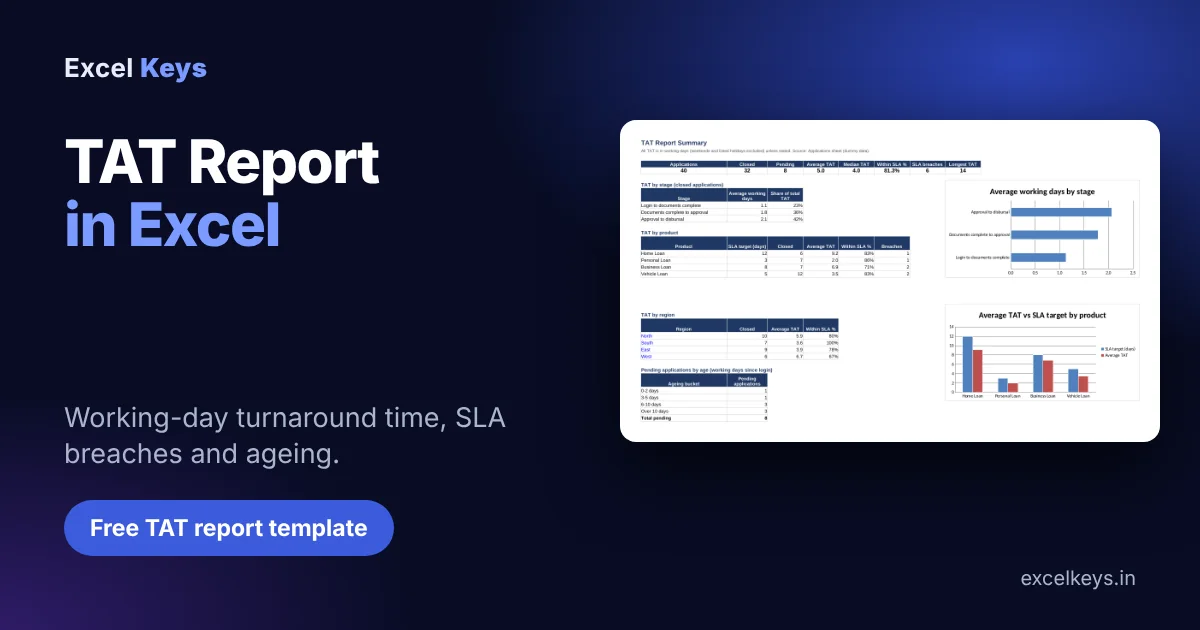
A TAT report in Excel shows how many working days each application takes from its start date to its completion date, and whether that beats the target, called the SLA. Use =NETWORKDAYS.INTL(start, end, weekend, holidays)-1 on every row, then summarise the average, the median and the percentage of cases closed within SLA.
TAT stands for turnaround time. It is one of the reports that operations and MIS teams in banking, insurance and finance are asked for again and again, because it shows where a process is stuck. This guide walks through the formulas, the SLA and ageing logic, and a free workbook with 40 dummy applications you can replace with your own.
Key takeaways
- TAT is the time between a start event and an end event, such as login to disbursal. Count it in working days, not calendar days, so Sundays and holidays do not look like delays.
- The core formula is =NETWORKDAYS.INTL(start, end, weekend code, holidays)-1. The minus one stops the start day from being counted.
- Compare each case with an SLA target and flag it Within SLA or Breached. In the sample data 26 of 32 closed cases, or 81.3%, were within SLA.
- Do not report only the average. Business Loan averages 6.9 days against a target of 8, yet 2 of its 7 closed cases still breached.
- Pending cases have no end date, so keep them out of the average and show them by age instead: 0-2, 3-5, 6-10 and over 10 working days.
In this guide
- What is a TAT report?
- The TAT formula in Excel
- How to build a TAT report in Excel
- Reading the numbers
- Free TAT report template
- Common mistakes
- When to automate it
- Frequently asked questions
What is a TAT report?
A TAT report lists every request, application or ticket with the time it took to finish, and summarises that time for managers. The clock starts at a defined event and stops at another. For a loan it might run from login to disbursal; for an insurance policy from proposal to issuance; for a support ticket from creation to resolution.
The summary answers three questions: how long does the process take, how many cases miss the target, and which stage or team is slow. It usually sits as one tab inside a larger monthly pack, so if you are building that pack, start with our guide to the MIS report in Excel. Whatever the process, the data should follow the rules in the data preparation checklist: one row per case, real dates, no merged cells.
The TAT formula in Excel
There are two ways to count TAT, and the difference matters. Calendar days is the plain subtraction of the dates. Working days leaves out weekly offs and public holidays, which is how most service level agreements are written.
Calendar days  = End date - Start date

Working days   = NETWORKDAYS.INTL(Start date, End date, Weekend code, Holidays) - 1
NETWORKDAYS.INTL counts the working days between two dates. Its third argument says which days are the weekend, and the fourth is an optional list of holiday dates. NETWORKDAYS counts both the start day and the end day, so a case finished on the day it started would show 1. Subtracting 1 gives elapsed working days, and the same-day case correctly shows 0. Some teams prefer to count the start day. Either is fine as long as you write the rule down and use it everywhere.
| Weekend code | Days treated as the weekend |
|---|---|
| 1 | Saturday and Sunday |
| 11 | Sunday only |
| 7 | Friday and Saturday |
Many Indian teams work on Saturdays, so the template uses code 11 (Sunday only). If your office is closed on Saturdays too, change one cell on the Settings sheet and every formula follows.
Take a Business Loan application logged on 8 September 2026 and disbursed on 16 September 2026. The plain subtraction gives 8 calendar days. But 13 September is a Sunday and 14 September is a holiday in the sample list, so the working-day TAT is only 6. Against an SLA of 8 working days, the case is within target.
| Application | Product | Login | Disbursed | Calendar days | Working days | SLA | Status |
|---|---|---|---|---|---|---|---|
| APP1031 | Business Loan | 08-Sep-2026 | 16-Sep-2026 | 8 | 6 | 8 | Within SLA |
| APP1013 | Business Loan | 14-Aug-2026 | 01-Sep-2026 | 18 | 14 | 8 | Breached |
| APP1010 | Personal Loan | 10-Aug-2026 | 11-Aug-2026 | 1 | 1 | 3 | Within SLA |
| APP1004 | Home Loan | 08-Aug-2026 | 22-Aug-2026 | 14 | 11 | 12 | Within SLA |
| APP1011 | Personal Loan | 11-Aug-2026 | 20-Aug-2026 | 9 | 7 | 3 | Breached |
Notice APP1013. It took 18 calendar days, which looks alarming, but 14 working days is the number the SLA is measured against. It still breached the target of 8 by six days, and the next sections show how to find out where those days went.
How to build a TAT report in Excel
The steps below use the free template, which has an Applications sheet, a Summary sheet and a Settings sheet. Each application is one row, with a date for every stage it has reached. Leave a date blank if the stage has not happened yet.
Step 1: Set up one row per application
Create columns for Application ID, Product, Region, Login date, Documents complete, Approved and Disbursed. Use real Excel dates. A case that is still open has a blank Disbursed date, and that blank is what marks it as pending.
Step 2: Put the rules on a Settings sheet
Store the weekend code, the report date, the holiday list and an SLA target for each product on one sheet. In the template, B4 holds the weekend code, B5 the report date, E4:E25 the holidays and A8:B15 the product and SLA table. Formulas then refer to these cells, so a change in a holiday list or a target never means editing formulas.
Step 3: Calculate TAT for each stage and in total
Login to docs:  =IF(OR(D2="",E2=""),"",NETWORKDAYS.INTL(D2,E2,Settings!$B$4,Settings!$E$4:$E$25)-1)
Total TAT:      =IF(OR(D2="",G2=""),"",NETWORKDAYS.INTL(D2,G2,Settings!$B$4,Settings!$E$4:$E$25)-1)
Column D is Login and E is Documents complete; G is Disbursed. The IF wrapper returns a blank when a date is missing, so open cases do not produce wrong numbers or errors. Repeat the first formula with E and F for documents to approval, and with F and G for approval to disbursal.
Step 4: Look up the SLA target and flag breaches
SLA target:  =IFERROR(INDEX(Settings!$B$8:$B$15,MATCH(B2,Settings!$A$8:$A$15,0)),"")
SLA status:  =IF(OR(K2="",M2=""),"",IF(K2<=M2,"Within SLA","Breached"))
INDEX and MATCH find the product in the Settings table and return its target in working days. Column K is the total TAT and M is the target. A case is Breached only when its TAT is greater than the target.
Step 5: Age the pending cases
Pending age:    =IF(O2="Pending",NETWORKDAYS.INTL(D2,Settings!$B$5,Settings!$B$4,Settings!$E$4:$E$25)-1,"")
Ageing bucket:  =IF(P2="","",IF(P2<=2,"0-2 days",IF(P2<=5,"3-5 days",IF(P2<=10,"6-10 days","Over 10 days"))))
Column O is Status, which says Pending when there is no disbursal date. Pending age counts working days from login to the report date. Set the report date to a fixed day for month-end reports, or type =TODAY() for a live view.
Step 6: Summarise average, median and percentage within SLA
Average TAT:   =AVERAGE(Applications!$K$2:$K$200)
Median TAT:    =MEDIAN(Applications!$K$2:$K$200)
Within SLA %:  =COUNTIF(Applications!$N$2:$N$200,"Within SLA")/COUNTIF(Applications!$O$2:$O$200,"Closed")
AVERAGE and MEDIAN skip the blanks returned by the IF formulas, so pending cases stay out of both. Showing the median beside the average protects you from one very slow case. The percentage divides the within-SLA count by the number of closed cases.
Step 7: Break it down by product, region and stage
Average TAT by product:  =IFERROR(AVERAGEIFS(Applications!$K$2:$K$200,Applications!$B$2:$B$200,A15),"")
Within SLA by product:   =IFERROR(COUNTIFS(Applications!$B$2:$B$200,A15,Applications!$N$2:$N$200,"Within SLA")/C15,"")
AVERAGEIFS averages only the rows that match a condition. Use it with the stage columns to see which step takes longest, and with the region or product column to see who is slow. Wrap each formula in IFERROR so an unused product shows a blank instead of #DIV/0!.
A word on hours. If your SLA is in hours, store the start and end as date and time values and use =(End-Start)*24 for elapsed hours. Counting only working hours needs a more detailed formula or a shift table, so I would keep hourly TAT as a separate report.
Reading the numbers
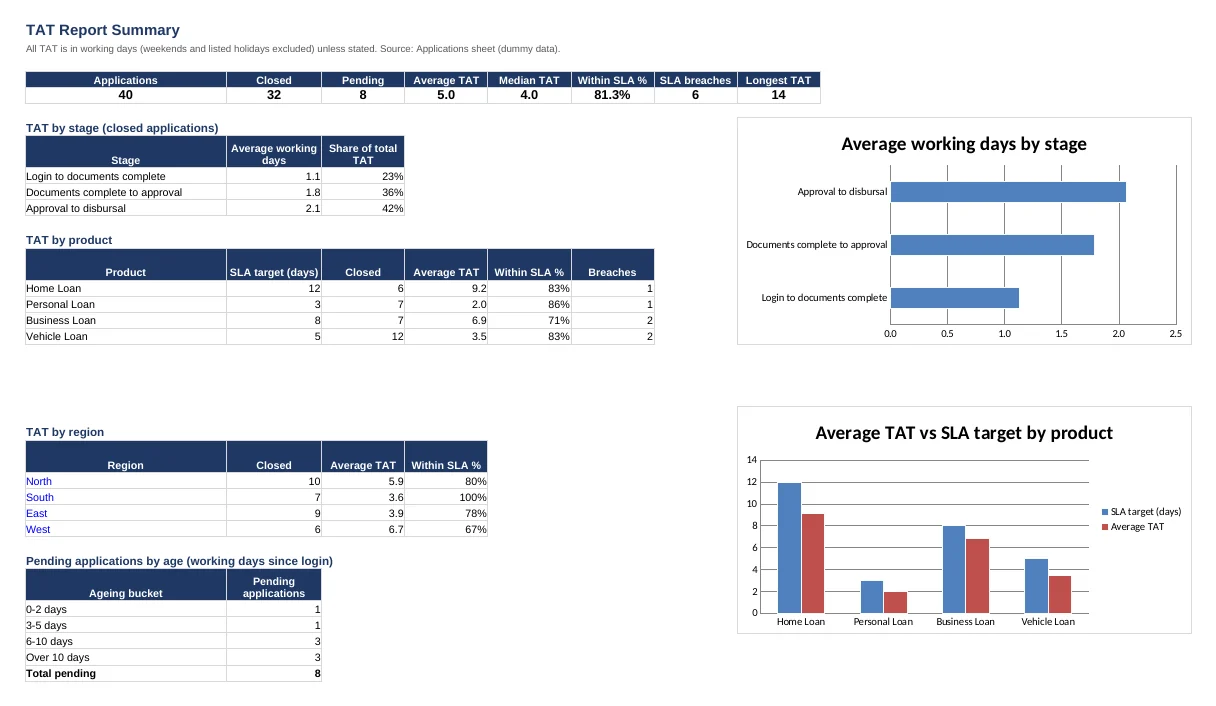
These are dummy records, so treat the results as a demonstration of the method, not as a benchmark. The sample has 40 applications: 32 closed and 8 still pending on the report date of 30 September 2026.
| Measure | Result |
|---|---|
| Applications / closed / pending | 40 / 32 / 8 |
| Average TAT | 5.0 working days |
| Median TAT | 4 working days |
| Longest TAT | 14 working days |
| Closed within SLA | 26 of 32 (81.3%) |
| SLA breaches | 6 |
Start with the stages. Login to documents takes 1.1 days on average, documents to approval 1.8 days and approval to disbursal 2.1 days, which is about 42% of the total. If a real report looked like this, the disbursal step would be the first place to dig, for example by checking whether cases wait for funds release or for a final document.
| Product | SLA (days) | Closed | Average TAT | Within SLA |
|---|---|---|---|---|
| Home Loan | 12 | 6 | 9.2 | 83% |
| Personal Loan | 3 | 7 | 2.0 | 86% |
| Business Loan | 8 | 7 | 6.9 | 71% |
| Vehicle Loan | 5 | 12 | 3.5 | 83% |
Now look at Business Loan. Its average of 6.9 days sits under the target of 8, yet only five of seven closed cases made the target. The average hides two breaches, which is why the report shows the percentage within SLA next to it. By region, West is the slowest at 6.7 days with 67% within SLA, while South averages 3.6 days with every closed case on time. With six or seven cases in each group, you would not act on this in real life, but with a full year of data the same table points straight at the weak spot.
Finally, the eight pending cases. One is 0-2 working days old, one is 3-5, three are 6-10 and three are over 10. The three oldest need a follow-up today, which is exactly what the ageing table is for.
Free TAT report template (download)
The workbook used in this guide is free to download and adapt. It has 40 dummy applications, a Summary sheet with charts, a Settings sheet for the rules, and a How to use sheet.
- Blue cells are inputs; grey columns and the Summary sheet are formulas, already filled down to row 200.
- Change the weekend code, holidays, report date and SLA targets on the Settings sheet.
- Paste your own applications into the Applications sheet from row 2. Leave Disbursed blank for open cases.
- Needs Excel 2010 or later, uses no macros and no dynamic-array functions, so it works in most Excel versions.
Common mistakes when building a TAT report
- Using calendar days against a working-day SLA. Sundays and holidays then look like delays.
- Forgetting the holiday list. A short list that is out of date quietly overstates TAT around festivals.
- Counting the start day without saying so. Decide whether same-day completion is 0 or 1 and apply it everywhere.
- Averaging open cases. A case with no end date has no TAT yet. Show it in an ageing table instead.
- Reporting only the average. Add the median and the percentage within SLA, as the Business Loan example shows.
- Dates stored as text. Subtraction and NETWORKDAYS.INTL return errors. Check that dates are right-aligned.
- One SLA for every product. A personal loan and a home loan should not share a target.
When to automate your TAT report
A TAT report built by hand is fine for one team and one month. It gets heavy when the data arrives as a daily export, when every branch wants its own view, or when you need filters, trends and breach alerts. If you want this logic turned into an automatic dashboard that refreshes from your own Excel file, see our insurance MIS dashboard work or send us a message with a sample of your file. Dummy values are fine. The same date logic also drives recruitment metrics, as in our time to hire formula guide.
Frequently asked questions
What is a TAT report in Excel?
A TAT report in Excel lists each case with its start date, end date and turnaround time, then summarises average TAT, median TAT and the percentage of cases within the SLA target. Teams use it to find slow stages, slow products or branches, and old cases that are still pending.
What is the formula for TAT in Excel?
For calendar days, subtract the start date from the end date. For working days, use =NETWORKDAYS.INTL(start, end, weekend code, holidays)-1. The minus one removes the start day so that a case finished on the day it began shows zero. Copy the formula down for every row.
How do I calculate TAT excluding Sundays and holidays?
Use NETWORKDAYS.INTL with weekend code 11, which treats only Sunday as the weekend, and pass your holiday dates as the fourth argument. For example =NETWORKDAYS.INTL(D2,G2,11,Settings!$E$4:$E$25)-1. Use code 1 if both Saturday and Sunday are off. Keeping the holiday list on a Settings sheet makes it easy to update every year.
How do I calculate TAT in hours in Excel?
Store the start and end as date and time values, subtract them and multiply by 24, as in =(G2-D2)*24, then format the cell as a number. This gives elapsed clock hours. Counting only office hours needs a more detailed formula or a shift table.
How do I flag SLA breaches in Excel?
Add a column with the SLA target for each product, then use =IF(K2<=M2,"Within SLA","Breached"), where K2 is the total TAT and M2 is the target. COUNTIF on that column gives the number of breaches, and dividing by closed cases gives the percentage within SLA.
Should pending cases be included in average TAT?
No. A pending case has no end date, so its TAT is not final and would distort the average. Report closed cases in the average and median, and show pending cases separately by age, for example 0-2, 3-5, 6-10 and over 10 working days.
Measure TAT once, then review it every month
A TAT report in Excel needs one definition, one formula pattern and one list of targets. Download the template, replace the dummy rows with your own applications and set your SLA targets. Within an hour you will know your average, your median, how many cases breach and which stage is slowing you down.
About the author: Jitendra Rao is the founder of Excel Keys and has spent over 11 years building MIS reports, sales analytics and dashboard automation for banking and finance teams. He builds Excel dashboards that run offline, on your own files. Last updated: 23 October 2026.